Introduction
Gaming enthusiasts often find themselves immersed in the captivating worlds of the latest gaming consoles, like the PlayStation 5 (PS5). However, an annoying issue that can hinder the gaming experience is controller drift. This occurs when your PS5 controller’s analog sticks register movement even when you’re not touching them, leading to erratic in-game behavior. But fret not! In this comprehensive guide, we’ll delve into the causes of PS5 controller drift and provide step-by-step solutions to get you back to seamless gaming. Below is how to fix PS5 controller drift.
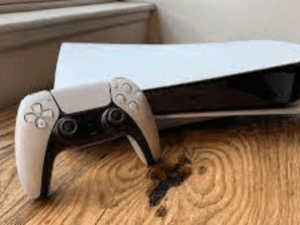
The PlayStation 5 (PS5) has revolutionized gaming with its cutting-edge technology and immersive experiences. However, even the most advanced gaming equipment can encounter issues, and one such problem is PS5 controller drift. This phenomenon can significantly impact gameplay, but it’s essential to understand both its implications and where it is located within the controller.
Implications of PS5 Controller Drift
PS5 controller drift refers to a situation where the analog sticks on the controller register movement even when the player isn’t touching them. This issue can have various implications for gaming:
- Erratic Movement: The most evident impact is erratic movement within games. Your character or in-game cursor might move without your input, leading to confusion and frustration.
- Aiming Accuracy: In games that require precision aiming, such as first-person shooters, drift can make it incredibly challenging to target enemies accurately.
- Navigational Challenges: Drift can hinder your ability to navigate menus and in-game interfaces effectively, slowing down your gaming experience.
- Competitive Disadvantage: In multiplayer games, controller drift can put you at a disadvantage against opponents who don’t face this issue, affecting your overall performance.
Location of PS5 Controller Drift
To address controller drift effectively, it’s crucial to understand where it’s located within the PS5 controller:
- Analog Sticks: The analog sticks, also known as thumbsticks, are the primary components responsible for controller drift. These sticks are located on the controller’s front and are used to control the movement of characters or other in-game elements.
- Internal Mechanism: Inside each analog stick, there are sensors and components that detect and transmit your physical input to the game. Over time, these components can experience wear and tear, leading to inaccuracies in their readings and resulting in drift.
- Connection Points: The analog sticks are connected to the controller’s main circuit board through delicate connectors. If these connectors become loose or damaged, they can contribute to drift.
- Dust and Debris: Dust, debris, and particles can accumulate around the base of the analog sticks. This buildup can interfere with the stick’s movement, leading to unintended signals being sent to the console.
- Calibration Mechanism: The analog sticks also have a calibration mechanism that helps ensure accurate movement. If this mechanism becomes misaligned or improperly calibrated, it can contribute to drift.
Read Also:
Understanding PS5 Controller Drift
Before going into the solutions, it is very essential that we understand what causes PS5 controller drift. The analog sticks in your controller are responsible for translating your physical movements into in-game actions. Over time, wear and tear, dust accumulation, and mechanical issues can disrupt the precise calibration of these sticks, resulting in unwanted movements even when your hands are off the controller.
Step 1: Basic Cleaning
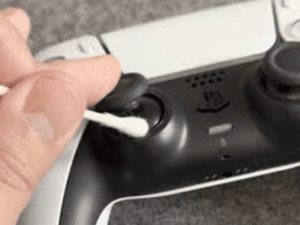
The first step to fix PS5 controller drift is a simple yet effective one: cleaning. Dust and debris can find their way into the gaps around the analog sticks, causing interference. To clean your controller:
- Gather Supplies: You’ll need a microfiber cloth, cotton swabs, and isopropyl alcohol (preferably 90% or higher).
- Power Off: Turn off your PS5 console and disconnect the controller.
- Remove Thumbsticks: Gently pry off the thumbsticks using a plastic opening tool.
- Clean Thumbsticks: Moisten a cotton swab with isopropyl alcohol and clean around the base of the thumbsticks. Be cautious not to let any liquid seep inside.
- Clean Housing: Dampen the microfiber cloth with isopropyl alcohol and clean the entire controller’s surface.
- Reassemble: Once everything is dry, reattach the thumbsticks and power on your console.
Step 2: Calibration
If cleaning doesn’t resolve the drift issue, calibration might do the trick. Here’s how:
- Access Calibration: Go to the PS5’s Home screen and select “Settings,” then “Accessories,” and finally “Controllers.”
- Calibrate Control Sticks: Choose the “Calibrate Control Sticks” option and follow the on-screen instructions. This process will fine-tune the analog sticks’ sensitivity.
- Test and Adjust: After calibration, test your controller in a game. If drift persists, you might need more advanced solutions.
Step 3: Firmware Update
Software-related glitches can contribute to controller drift. Ensure your controller’s firmware is up to date:
- Connect Controller: Attach your controller to the PS5 using a USB cable.
- Access Settings: On the Home screen, navigate to “Settings,” then “System,” and select “System Software.”
- Update Controller: If an update is available, the system will prompt you. Follow the instructions to complete the update.
Step 4: Mechanical Adjustment
If drift remains unresolved, a more hands-on approach might be needed:
- Tools Needed: You’ll require a screwdriver set, precision tweezers, and canned air.
- Open the Controller: Carefully remove the screws on the back of the controller and open the casing.
- Access the Analog Module: Locate the analog module connected to the thumbstick causing drift.
- Tweezers and Air: Use precision tweezers to gently lift the module’s housing and give it a few bursts of canned air to dislodge any debris.
- Reassemble: Put everything back together, ensuring no wires are pinched, and screws are tightly secured.
Step 5: Professional Repair
If all else fails, it’s time to consider professional repair:
- Contact Sony Support: Visit the official PlayStation support website and explore repair options.
- Warranty Check: If your PS5 is under warranty, repair or replacement might be covered.
Conclusion
PS5 controller drift can be a frustrating problem, but armed with the right knowledge, you can troubleshoot and fix it. From basic cleaning to advanced mechanical adjustments, these steps should help you regain control over your gaming experience. Remember, patience and precision are key, and if all else fails, don’t hesitate to seek professional assistance. Now, armed with this guide, you can get back to what matters most: enjoying your favorite games on your PS5, and be drift-free.
Read Also:
- How to Create a Pool in WhatsApp
- How to Fix Tamildhool Not Working
- How to Cancel Quick Quack Membership
Like, share, and comment.
Thanks for reading.